What it is? Opportunity Bubbles? Yes, good questions guys! Now, you'll knowing about What's 'Opportunity Bubbles' on Clikcbank?
------------------------------------------------------------------------
Opportunity Bubbles
The bubbles are sized and ordered based on your Opportunity Value. Each bubble will show an Opportunity Value Score. There is no maximum score.
The Opportunity Value factors in important details such the number of customers shared, the average amount of earnings per sale, and the suggested vendor’s conversion rates. The size of the opportunity based upon this value will be displayed visually by the size of the bubble shown on the chart.
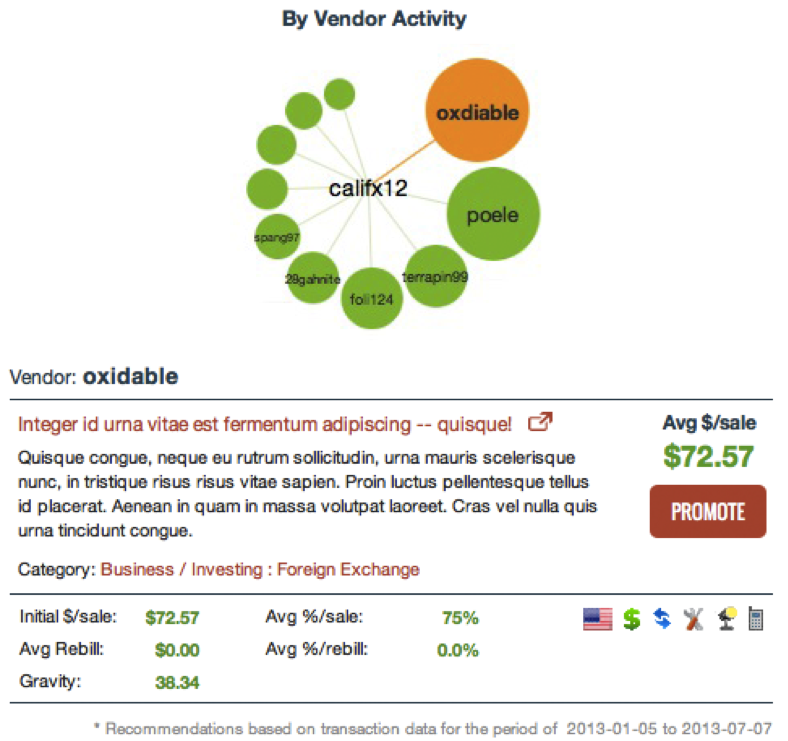
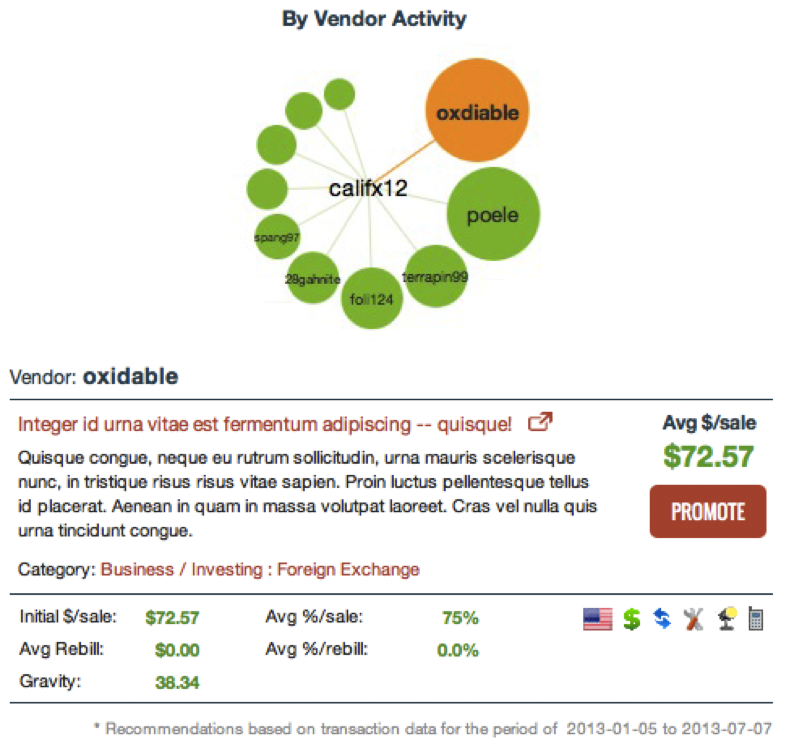
For example, suppose the client’s bubble chart looks like this. The nicknames and Marketplace listing in this screenshot are for example purposes only!
This client’s customers are most likely to purchase products from Vendor “oxdiable”. If Vendor “oxdiable” is an account they own and they’re already promoting Vendor “poele’s” products, Vendor “terrapin99” represents the best opportunity.
Data for ClickBank Insights is calculated and updated once a week to include your most recent sales activity and to ensure up-to-date recommendations.
Linked Accounts
The Opportunity Value is calculated on an account-by-account basis. If you have more than one linked account, you may see other accounts they own as recommendations in the feature.
Hiding Accounts
We know that some of the vendors in your list may be vendors that you already promote. Or, they may be other products that you own. We’ve made it easy to remove these items from view. When you select one of the bubbles, you’ll see an option to Hide This Vendor. When you click on this link, that vendor will disappear and will be replaced by another opportunity if one is available. Don’t worry, if you change your mind you can always start over by Showing All vendors.
Exclusions
ClickBank Insights will not recommend accounts that have a Quality Management rating of “unacceptable” (red).
Accounts that are not listed in the Marketplace and accounts that have opted out of the feature will not appear as recommendations in ClickBank Insights.
If an account is excluded for any of these three reasons, their recommendation will be removed from your display within 24 hours.
Opting Out
If you would like to opt-out from appearing as a recommendation through this feature, you can do so when logged into your account under Settings > My Site > ClickBank Insights.
Opting out only affects the account you’re logged into. If you don’t want any of your accounts to appear as a recommendation, you will need to log into each of your individual accounts and opt out.
Using the Interface
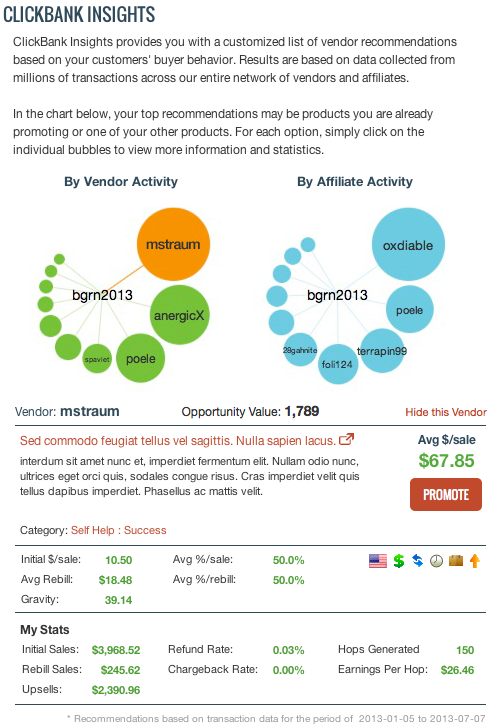
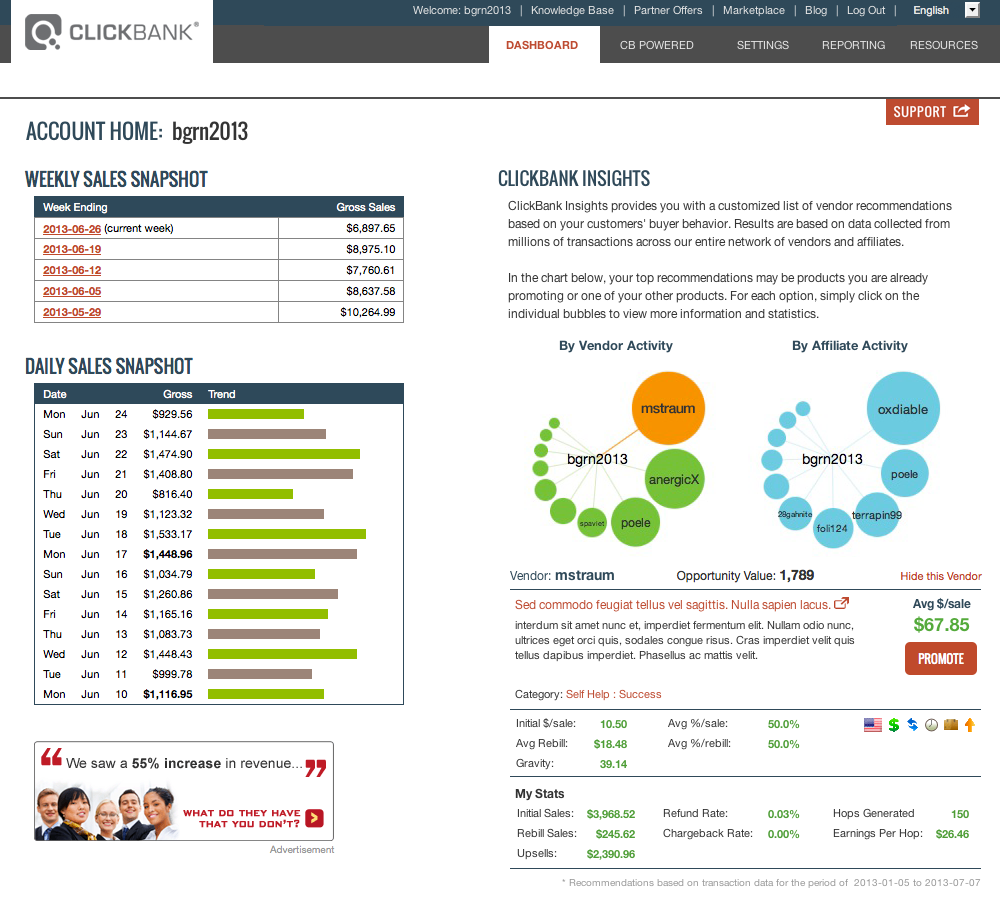
ClickBank Insights will automatically highlight the vendor with the largest Opportunity Value (whether driven by vendor or affiliate activity).
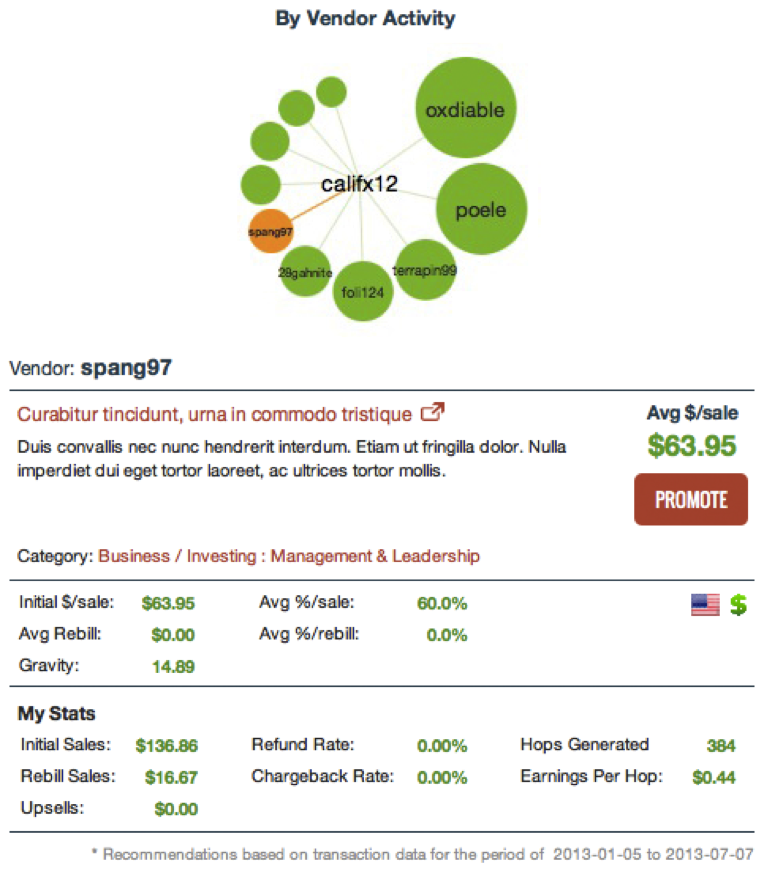
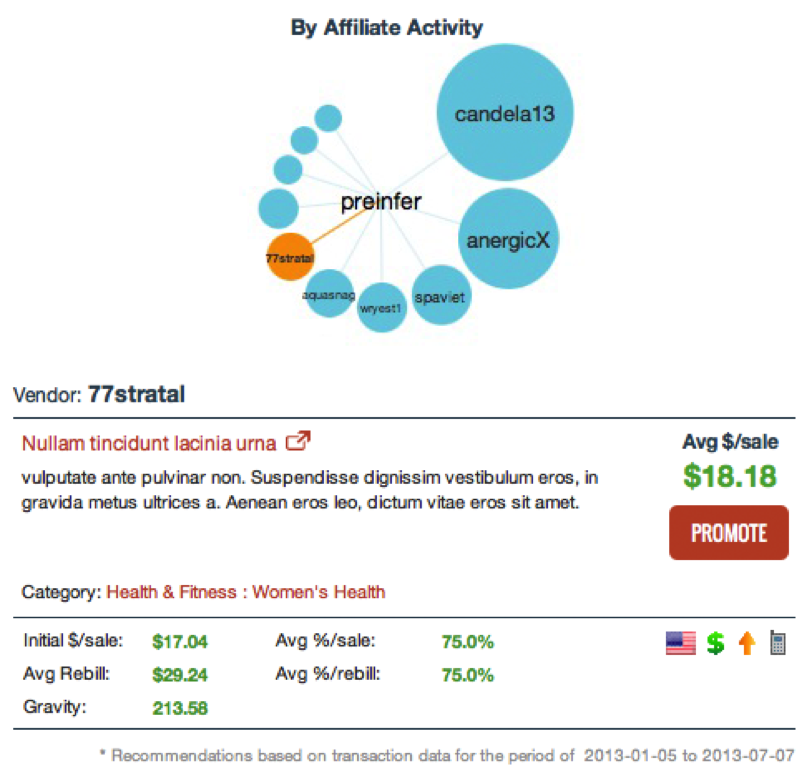
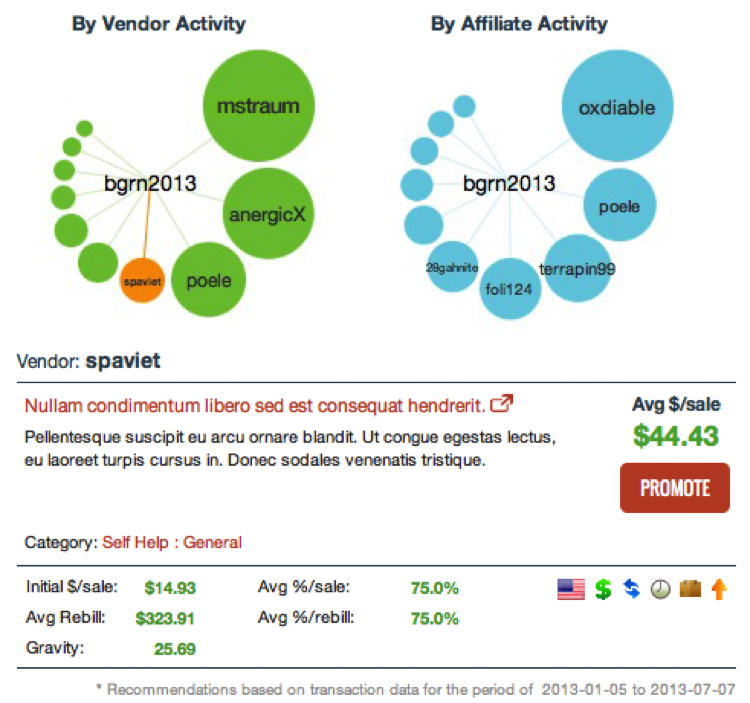
Directly below the bubble chart is the ClickBank Marketplace listing and data for the selected vendor. You can open the vendor’s Pitch Page, read their description and see Marketplace statistics in the display. If you are viewing a vendor that you have already promoted, you will also see statistics detailing your personal affiliate activity for that account.
To see how this would look, please see the screenshot below. The nicknames and Marketplace listing in this screenshot are for example purposes only.
When you hover over other bubbles, you can see the vendor nickname at a glance. To see the full display of Marketplace information below the chart, click on any bubble and the display will update.
--------------------------------------------------------
Hope it help guys!